


In my previous article Build Once, Harvest Everywhere The Semantic Ecosystem I talked about what a semantic model is and how you can harvest it in multiple ways, once you build it. Today, I want to focus more on the tools and steps needed to achieve that.
Power BI Desktop
This is your main development tool, and you should get it installed on your PC. Currently, there are two ways you can install it:
As a standard Windows Application (by downloading the .exe installer).
As a Store App (via the Microsoft Store).
The advantage of installing it as an App is that, in most cases, you do not need Administrator rights on your PC, and you get auto-updates (usually once per month). On the other hand, if you install via the .exe installer, you have full control over the installed version and when updates occur.
Power BI Desktop is a very versatile tool. It can be used for the development of Semantic Model parts and for Report/Visuals (GUI) parts, all in one place.
Visual Studio + PBI Desktop
Large organizations—especially if the semantic models are finally deployed on Microsoft Analysis Services—might use Visual Studio as the main development tool for the semantic model part, and Power BI Desktop for the visual reporting layer.
The Essential External Tools
While today’s Power BI Desktop is able to do more and more on its own, some external tools are still vital for the professional developer. I would emphasize three of them as the most useful on a daily basis.
1. DAX Studio
While Power BI lets you write DAX, DAX Studio lets you analyze exactly how those calculations run. It is the industry standard for troubleshooting slow reports, allowing you to view Server Timings to pinpoint bottlenecks in your code. Beyond optimization, it is also a fantastic tool for formatting complex DAX measures and extracting data directly from your model.
2. Tabular Editor (TE2 & TE3)
Tabular Editor is the ultimate tool for managing your semantic model’s metadata efficiently. It comes in two flavors:
Tabular Editor 2 (TE2): A free, open-source version that is perfect for batch updates, scripting, and advanced model management.
Tabular Editor 3 (TE3): A commercial, full-featured development environment. While TE2 handles the core mechanics beautifully, TE3 adds a premium layer with a dedicated DAX Debugger, IntelliSense, and a rich interface for testing code before it ever hits your report.
3. ALM Toolkit
This tool is essential for teams. It compares two Power BI files (e.g., Development vs. Production) and highlights the differences line-by-line. It allows you to merge changes without accidentally overwriting the entire dataset.
A Few More Useful Tools
Bravo for Power BI: The most user-friendly tool for beginners and pros alike. It instantly generates compliant Date/Calendar tables, applies best-practice formatting to your measures, and helps you optimize model size with a beautiful interface.
Measure Killer: As reports grow, they accumulate “dead” code. Measure Killer scans your entire report (and your cloud environment) to find measures and columns that are never used, allowing you to safely delete them to speed up your model.
Power BI Helper: Generates automatic documentation of your model, shows you lineage (which columns feed which visuals), and helps you reverse-engineer reports inherited from others.
(There are many more—just search for “must have Power BI external tools” on the web.)
The Deployment Process
It is important to clearly separate the lifecycle into two distinct phases: the Development Phase and the Consumption Phase.
The Development Phase
This is typically carried out by BI Developers or Data Analysts. The goal here is to translate business requirements into robust semantic models and insightful reports. The tools mentioned above (DAX Studio, Tabular Editor, etc.) are almost exclusively used during this phase to build and optimize the solution.
The Consumption Phase
This is where business users interact with the data to derive value. While Power BI Desktop can technically display reports, it is primarily designed for authoring. Ideally, consumption happens on the web via the Power BI Service, ensuring users are always looking at the latest version of the data without the complexity of the developer interface.
Report Publishing
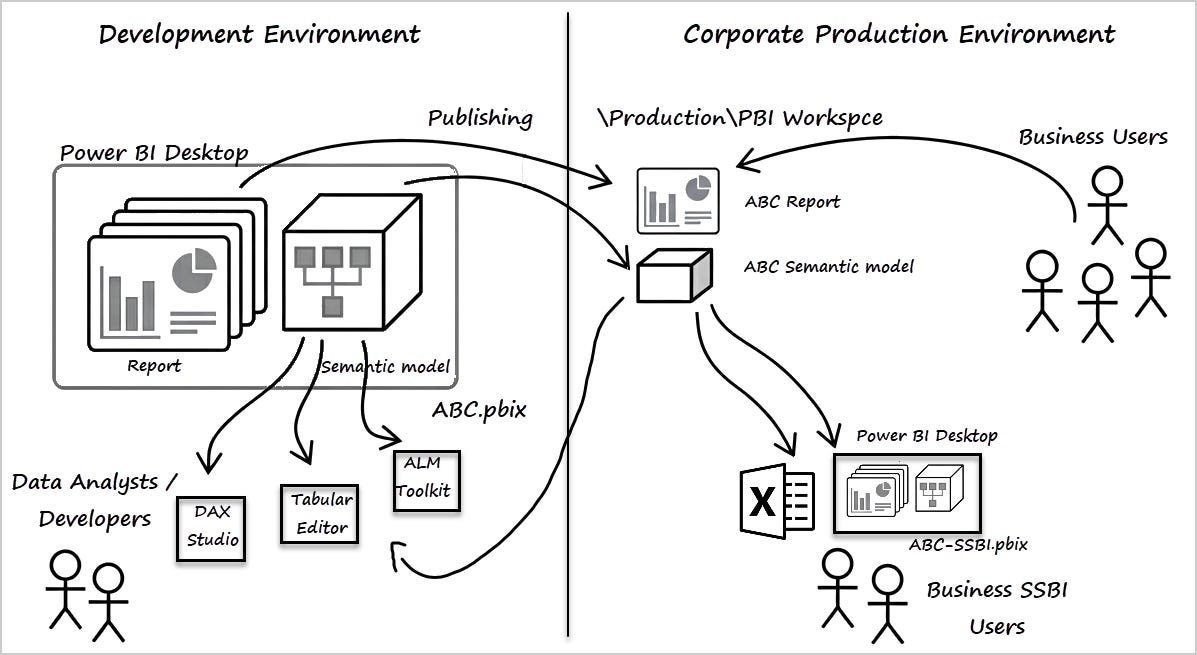
Publishing is the bridge between these two worlds. It is the process of transferring your work from the local environment to the cloud. Crucially, when you publish a Power BI Desktop file (.pbix), it technically splits into two separate components in the Service:
The Semantic Model (The data and logic)
The Report (The visuals and canvas)
Please see the diagram below.
Managing the Lifecycle
Once you understand this diagram, a critical realization follows: after deployment, you essentially have two copies of the same semantic model—one running locally on your PC, and one live in the Web Service (Production).
While they start out identical, they will inevitably deviate as you continue developing new features locally. This is where tools like ALM Toolkit become essential. They allow you to compare your local “Work in Progress” model against the “Live” production model to see exactly what has changed before you publish again.
The Core Takeaway
The most important lesson here is that the Semantic Model is the heart of your Power BI solution. Whether it is currently sitting on your local laptop during development or hosting thousands of users in the cloud, it remains the central engine. The power of the external tools we discussed lies in their ability to connect to this model wherever it resides—local or cloud—to help you optimize, debug, and manage it effectively.
The Rise of Self-Service BI
Traditionally, organizations operated in two distinct silos: IT Developers, who owned the creation tools, and Business Users, who were limited to simply viewing reports on the web. The fundamental flaw in this model is the bottleneck: business demand for new insights (the demand) always outpaces the IT department’s capacity to build them (the supply).
This is where Self-Service BI (SSBI) users come into the picture. These are skilled business professionals who are not afraid to solve immediate problems themselves.
Consider a scenario where a “Corporate Semantic Model” is published in production. It defines the core business entities and serves 90% of the organization’s needs. However, a local business unit often has specific, niche requirements—perhaps a new measure for a quarterly review or a budget target that only exists in a local Excel file.
Instead of submitting a formal request to IT and waiting weeks, an SSBI user can connect to and extend the corporate model. Here are the primary ways SSBI users can leverage this:
Power BI Desktop (Live Connection): The user connects a blank Power BI file to the published corporate model. In this mode, they cannot change the underlying data structure, but they can author new report pages, build new visuals, and write report-level measures. This allows for custom storytelling while still using trusted corporate data.
Power BI Desktop (Composite Models): This takes capability a step further. The user converts the connection into a Mixed Mode model, allowing them to mash up corporate data with local data. For example, they can import a local Excel budget file, relate it to the corporate “Sales” table, and even add new calculated columns. This creates a specialized “local extension” of the main model.
Excel Integration (Analyze in Excel & Get Data): For finance professionals and analysts who live in spreadsheets, this is a game-changer. Users can connect Excel directly to the corporate semantic model. They can choose to build standard Pivot Tables for aggregated reporting, or for more advanced scenarios, use DAX Table Expressions to import specific flat tables of live data directly into an Excel sheet.
The Collaborative Future
If these local business units are given their own Power BI Workspace, they can even publish these “extended” reports back to the web. This allows them to share specialized insights with colleagues while maintaining a single version of the truth for the underlying data.
Conclusion: The Chef, The Kitchen, and The Feast
Building a successful data culture isn’t just about having the right ingredients (data); it’s about having the right kitchen setup. We have explored how Power BI Desktop acts as your main workstation, but true professional capability comes from integrating external tools like DAX Studio for performance, Tabular Editor for speed, and ALM Toolkit for safety.
Crucially, we debunked the myth that development is solely an “IT job.” By understanding the separation between the Semantic Model and the Report, we empower Self-Service BI users to connect, extend, and innovate without breaking the core foundation.
Your Next Step: If you are still only using Power BI Desktop, pick one external tool from this list today—perhaps Bravo for quick formatting or DAX Studio to inspect a slow query—and install it. You will be surprised at how much faster your “cooking” becomes.
Want to dive deeper? Browse the full library by category on the Topics Page.